Super Chassid World for the CYD
Put the game on an ESP32 “Cheap Yellow Display” (ESP32-2432S028R) right from this page — no software to install.
What you need
- A CYD board (ESP32-2432S028R, 2.8″ touch screen).
- A USB cable that carries data — some phone-charging cables only carry power.
- A computer with Google Chrome or Microsoft Edge. (Safari, Firefox and phones can’t flash.)
Pick your board
Look at the USB sockets on your CYD.
Install
Plug the CYD into your computer, click the button, choose the port that appears (often “USB-SERIAL CH340” or “CP2102”) and follow the prompts. Installing takes about a minute.
Stuck on “Connecting”? Hold the BOOT button on the back of the CYD, tap RST, let go of BOOT, and click Install again.
First start: touch setup
The first time the game starts, it shows arrows in each corner. Tap the tip of each arrow with a stylus or fingernail so touches line up with the screen. This is saved, so you only do it once.
To redo it later, hold BOOT while you press RST (or plug the board in).
How to play
| Walk | Touch and hold the left or right third of the screen. |
|---|---|
| Run | Hold the very edge of the screen. |
| Jump | Touch the middle of the screen, or press BOOT. |
| Jump while walking | Touch the top half on the left or right side. |
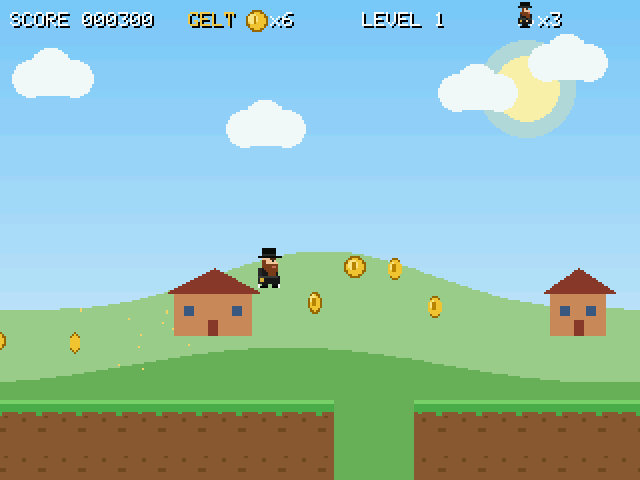
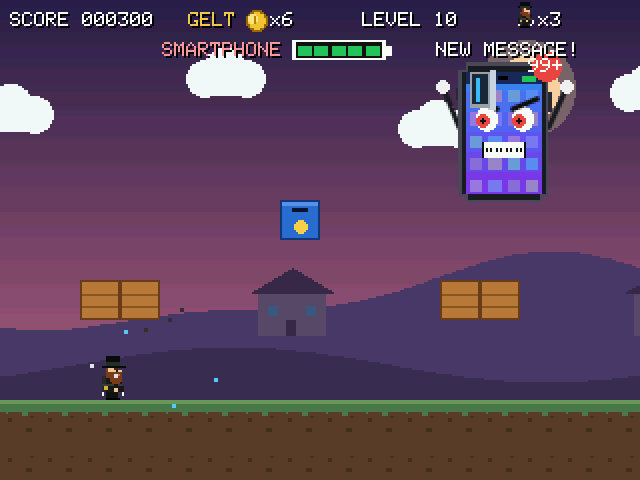
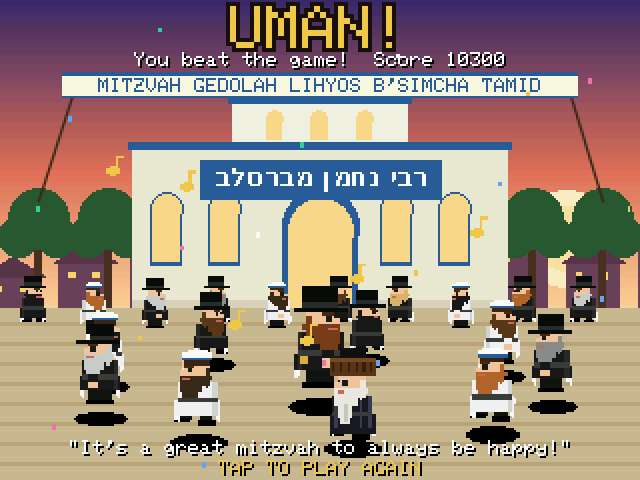
| Goal | Collect gelt, stomp kugel and gefilte fish (not the hot cholent!), grab the kiddush cup for a golden bekishe, and reach the shul. Level 10 is the smartphone boss — beat it to dance in Uman. |
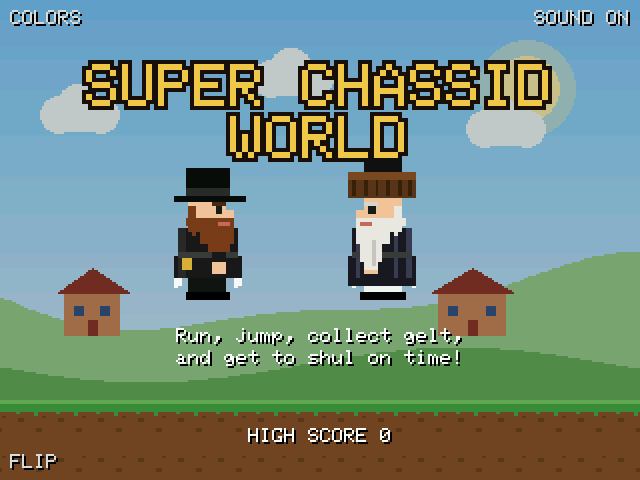
On the title screen, tap COLORS (top-left) if colours look like a photo negative, SOUND (top-right) to mute, and FLIP (bottom-left) to turn the picture upside down. These are remembered.
Troubleshooting
The screen stays white or black after installing
Install again and pick the other board type in step 2. Then press RST.
Colours look wrong (negative)
Tap COLORS in the top-left corner of the title screen.
Touches land in the wrong place
Redo the touch setup: hold BOOT while pressing RST, then tap each arrow tip carefully.
No sound
The CYD has a speaker connector marked SPEAK; you need a small speaker plugged in there. Also check SOUND is ON on the title screen.